
Create and present HTML slides with Claude
Claude creates attractive presentations as HTML files in minutes. This guide covers the whole journey: from a good prompt through notes and testing to your talk on the projector or in Teams.
What is an HTML presentation?
An HTML presentation is a web page that behaves like a slide deck. Each slide is a section of the page, CSS handles the design and you advance with the keyboard. Instead of a .pptx or .key file you have a single .html file that runs in any browser. Frameworks such as reveal.js work this way, and Claude can create such files on request.
Pros and cons
| Pros | Cons |
|---|---|
| Runs on any computer, no license needed | No presenter view in the browser |
| Created with Claude in minutes and easy to change | Editing means asking Claude or changing HTML |
| Animations, charts, interactive elements | Every deck is built a little differently |
| One file, easy to share and version | Notes have to live in the HTML |
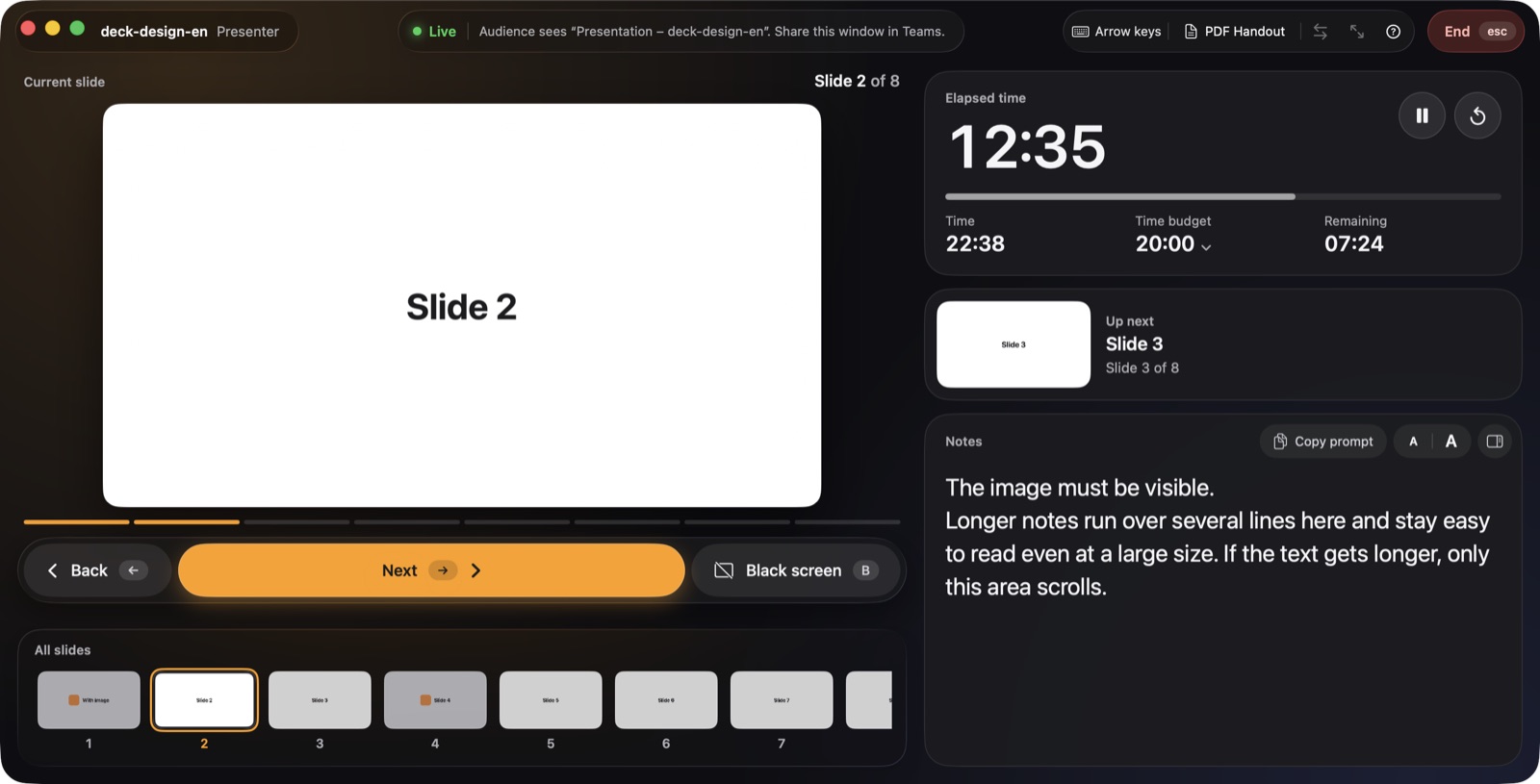
Most of the cons concern the talk itself. That’s what presenthtml is for: a presenter view for any HTML deck.
Creating the deck with Claude
The clearer your request, the better the result. Four things help:
- Goal and audience: whom do you want to convince of what?
- Length and scope: how many minutes, how many slides?
- Material: numbers, outline, existing text. Without material, Claude stays generic.
- Technical: one self-contained HTML file, each slide its own section, arrow-key navigation, 16:9.
You’ll find ready-made wording in the prompt collection for presentations. Then let Claude refine the result slide by slide instead of asking for everything at once.
Adding speaker notes
Notes are hidden inside each slide as <aside class="notes">. presenthtml shows them in the presenter view; the audience never sees them. Ask Claude to add bullet points with the notes prompt. The timing prompt adds the planned speaking time per slide as well.
Testing before your talk
- Open the file in presenthtml and click through once, forwards and backwards.
- Check that the thumbnails show all slides. If presenthtml finds only one slide, choose a different control mode.
- Check the notes on every slide and set the text size for your talk.
- With the check prompt, Claude can find typical problems itself.
Presenting on a projector and in Teams
With a projector or second display, presenthtml shows the presentation there in full screen and the presenter view on your MacBook. In video calls, share only the window “Presentation – file name”; details are in the guide Present in Teams and see your notes. The Space bar starts the timer, and the time budget shows how much time is left.
Handout and follow-up
Press ⌘E and presenthtml creates a PDF handout of all slides, with your notes if you like. See the guide PDF handout from HTML slides.
Common mistakes
- Too much text per slide. One key message per slide; details belong in the notes.
- Content from the internet. If the deck loads fonts or images online, they’re missing without a connection. Embed everything.
- Notes at the end of the file. They must sit inside each slide, otherwise presenthtml can’t match them.
- Sharing the whole screen. Then the audience sees your notes. Share only the presentation window.
FAQ
Can Claude turn a PowerPoint file into an HTML presentation?
Claude can take over the content of a presentation when you paste the text, outline or slide content, and build an HTML presentation from it. The design is created anew.
Do I need to know how to code?
No. Claude writes the HTML and presenthtml presents it. You describe changes to Claude in plain language.
Do HTML presentations work offline?
Yes, as long as all content is inside the file. If the deck loads fonts or images from the internet, those need a connection.

More guides
Present Claude slides
Present an HTML deck made with Claude on a projector or in Teams – with a presenter view, next slide, speaker notes and a time budget on your Mac.
Read the guide →Present in Teams with notes
Share an HTML presentation in Microsoft Teams or Zoom while your speaker notes, next slide and timer stay visible only to you.
Read the guide →reveal.js with a presenter view
Present reveal.js decks on the Mac with a presenter view showing the next slide, speaker notes and a time budget – no pop-up window, no notes server.
Read the guide →