
How to present Claude slides – with a presenter view
Claude often builds presentations as a single HTML file. The result looks great – but on stage you miss the presenter view you know from desktop presentation apps. Here is how to present HTML slides from Claude with confidence.
Why Claude creates HTML slides
When you ask Claude for a presentation, you often get a single HTML file: each slide is its own section, styled with CSS, and you advance with the arrow keys. That has advantages. An HTML presentation runs on any computer, is quick to change and can include animations, charts or interactive elements that would be tedious in classic slide software.
The problem: no presenter view in the browser
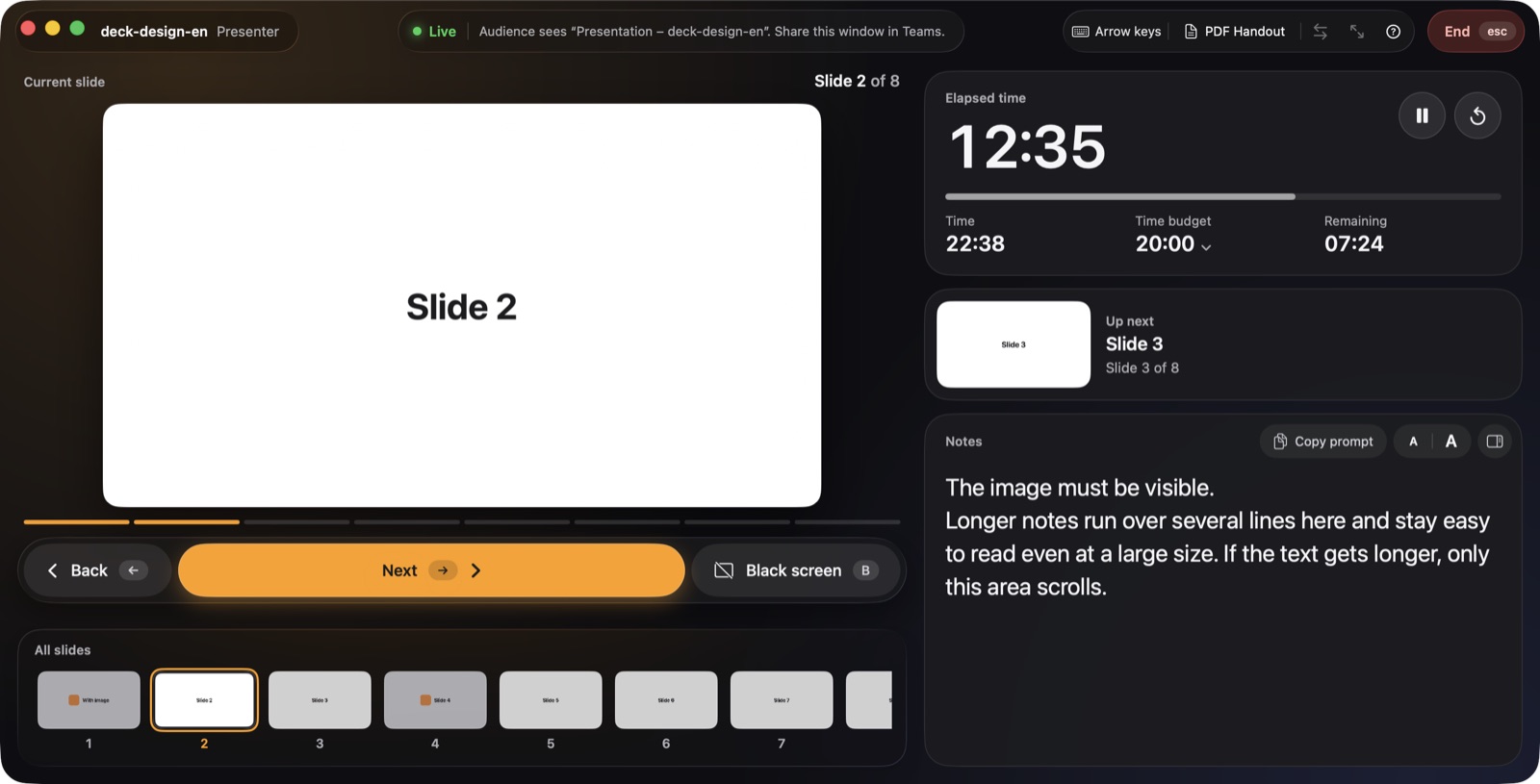
Open the file in Safari or Chrome and you see exactly what your audience sees. There is no second screen with the next slide, no clock, no timer and no notes. If you have ever presented with a desktop presentation app, that’s exactly what you miss. Sharing the browser in Teams makes it worse: any note you open is visible to everyone.
Five steps to your talk
- Save the HTML file. Download the presentation from Claude as an HTML file and put it in a folder of your choice.
- Open it in presenthtml. Drag the file onto the presenthtml start window or choose it with ⌘O.
- Check your screens. With a projector or second display, the presentation runs there in full screen and the presenter view on your MacBook. Without a second display, the presentation opens in its own window. If the screens are swapped, press S.
- Set your time budget. Click the value next to “Time budget” in the time card and choose the length of your talk. If you run long, the overtime shows in red.
- Start presenting. The Space bar starts the timer; then advance with →, the space bar or a presentation clicker.
During your talk you see the current slide, the next slide, all thumbnails, the clock, elapsed time and your notes. Press B to black out the screen for your audience, for example during a discussion.
Let Claude write your speaker notes
Notes are hidden inside the HTML file, right in each slide. presenthtml shows them in the presenter view; the audience never sees them. The easiest way is to have Claude write them for you. Give Claude this text together with your presentation:
Add speaker notes as bullet points to every slide. Format:
Each slide is its own element (e.g. <section class="slide">). The notes
go INSIDE that slide element as
<aside class="notes"><ul><li>Bullet point</li>…</ul></aside>.
Hide them with CSS: aside.notes { display: none; }.
Optionally add a short intro sentence as <p> before the list.
You can also copy this prompt straight from presenthtml with “Copy prompt”.
Tips for presenting
- Click through once. Make sure all slides and builds appear correctly. In presenthtml, builds count as separate steps.
- Rely on the fixed resolution. presenthtml always renders presentations at 1920 × 1080 and only scales them. What you see in the preview is what your audience sees.
- Switch the control mode if needed. If a deck doesn’t respond to arrow keys, choose a different control mode at the top, such as space bar or mouse click.
- Hand out a PDF. Press ⌘E to export all slides as a PDF, with your notes if you like.

More guides
Guide: create and present
The complete guide: create HTML presentations with Claude, add speaker notes, test them and present with a presenter view on a projector or in Teams.
Read the guide →Present in Teams with notes
Share an HTML presentation in Microsoft Teams or Zoom while your speaker notes, next slide and timer stay visible only to you.
Read the guide →reveal.js with a presenter view
Present reveal.js decks on the Mac with a presenter view showing the next slide, speaker notes and a time budget – no pop-up window, no notes server.
Read the guide →