
Using a presentation clicker on a Mac
With a clicker you can move freely around the room and still advance reliably. Here is how presentation clickers work on a Mac with HTML slides and presenthtml.
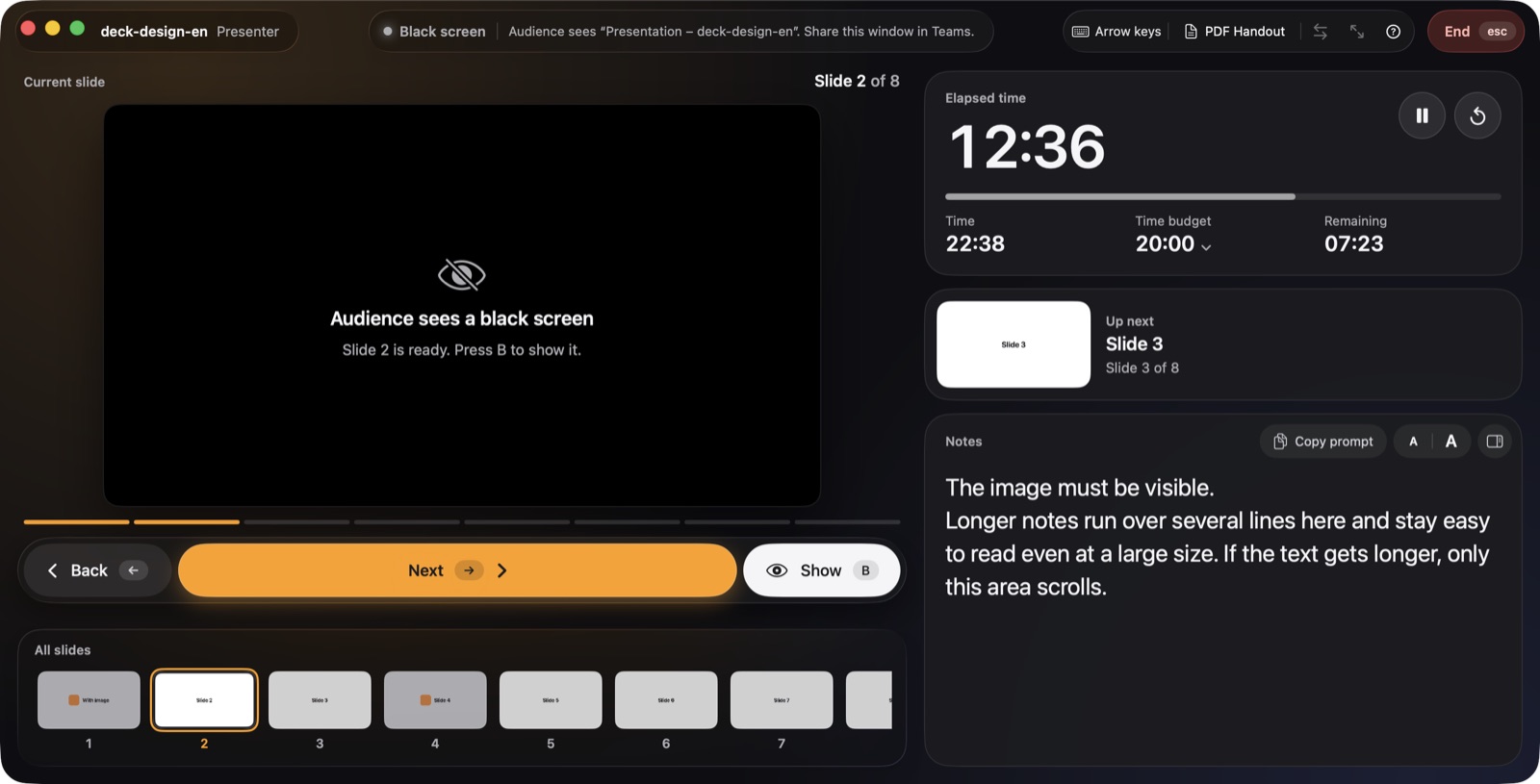
How clickers work
Most presentation clickers register with the Mac as a keyboard. When you press “next”, they send keys such as right arrow or Page Down. That’s why they usually need no drivers or settings.
Connecting a clicker
- USB receiver: plug it in and you’re done. On Macs with USB-C you may need an adapter.
- Bluetooth: put the clicker in pairing mode and connect it in System Settings → Bluetooth.
- Test: open presenthtml and go forwards and backwards a few times.
Keys presenthtml understands
| Clicker sends | presenthtml |
|---|---|
| → ↓ Page ↓ Space ↩ | Start presentation, then next |
| ← ↑ Page ↑ | Back |
| B or . | Black screen on and off |
| esc | End presentation |
Many clickers have a “black screen” button that sends B or .. After the last slide, “next” in presenthtml also switches to a black screen.
Choosing a control mode
presenthtml translates the clicker’s keys into commands for the HTML deck. If a deck doesn’t respond to arrow keys, choose a different control mode at the top of the presenter view, such as space bar or Page Up/Down. The clicker itself doesn’t need changing.
Pitfalls
- Start/stop button: some clickers alternately send F5 and esc. esc ends the presentation in presenthtml, so avoid that button during your talk.
- Wrong app in front: keys go to the active app. If you clicked into Teams in between, click back into presenthtml once.
- Flat battery: check before your talk and bring a spare.

More guides
Guide: create and present
The complete guide: create HTML presentations with Claude, add speaker notes, test them and present with a presenter view on a projector or in Teams.
Read the guide →Present Claude slides
Present an HTML deck made with Claude on a projector or in Teams – with a presenter view, next slide, speaker notes and a time budget on your Mac.
Read the guide →Present in Teams with notes
Share an HTML presentation in Microsoft Teams or Zoom while your speaker notes, next slide and timer stay visible only to you.
Read the guide →