
Presenter view compared: PowerPoint, Keynote, Google Slides and HTML
The presenter view is your most important tool on stage: you see notes, the next slide and time; the audience sees only the slide. Here is how the common tools compare – and what’s missing for HTML presentations.
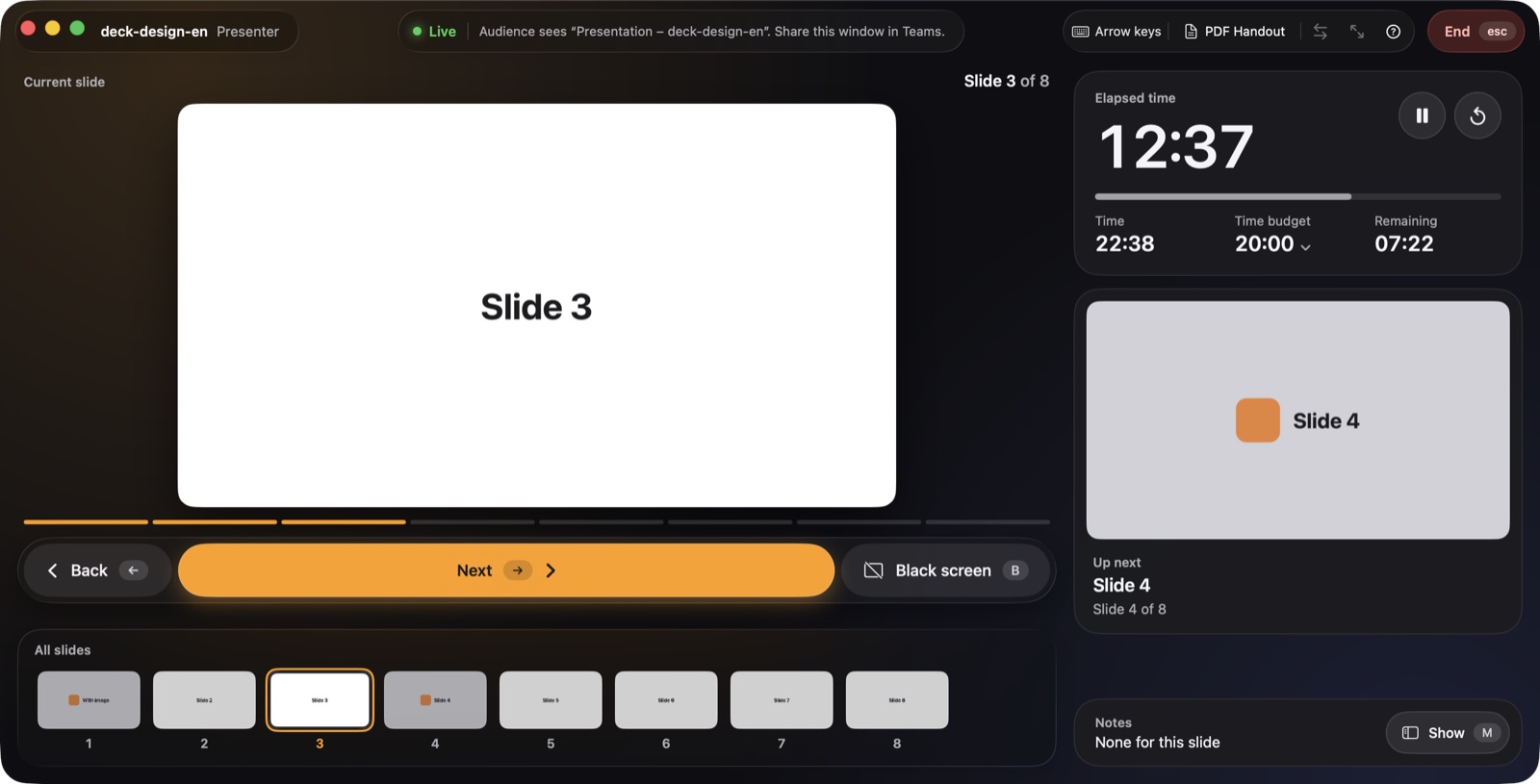
What a presenter view should do
- show the current and next slide
- show speaker notes at a readable size
- show the clock and a timer
- work smoothly with projectors and video calls
PowerPoint
PowerPoint’s Presenter View shows the current and next slide, notes and a timer. With a second display it largely sets itself up. In Microsoft Teams you can present via PowerPoint Live and see your notes while attendees see only the slides.
Keynote
Keynote calls it the presenter display. You can arrange it freely, and it shows notes, the next slide, a clock and a timer. For video calls, Keynote can play the slideshow in a window that you share specifically.
Google Slides
Google Slides opens its presenter view in a separate browser window with notes, preview and a timer. To keep your notes private, share only the tab or window with the presentation in your video call.
HTML in the browser
If you simply open an HTML presentation in a browser, there is no presenter view. Some frameworks bring their own, such as reveal.js with a notes window opened with S. For decks made with Claude or other tools it’s usually missing entirely. More in the guide reveal.js with a presenter view.
HTML with presenthtml
presenthtml adds a presenter view to any HTML presentation: current and next slide, thumbnails, clock, timer with time budget and overtime, and speaker notes at an adjustable size. The presentation runs in full screen on the second display or in its own window for Teams, Zoom and Webex.
Overview
| PowerPoint | Keynote | Google Slides | HTML in browser | HTML with presenthtml | |
|---|---|---|---|---|---|
| Notes | ✓ | ✓ | ✓ | – | ✓ |
| Next slide | ✓ | ✓ | ✓ | – | ✓ |
| Timer | ✓ | ✓ | ✓ | – | ✓, with time budget |
| Video calls | PowerPoint Live in Teams | Play in window | Share tab or window | Notes easily exposed | Own presentation window |
| File format | .pptx | .key | online | .html | .html |
If you work with HTML presentations, for example from Claude, presenthtml gives you the familiar presenter view back without rebuilding your deck.

More guides
Guide: create and present
The complete guide: create HTML presentations with Claude, add speaker notes, test them and present with a presenter view on a projector or in Teams.
Read the guide →Present Claude slides
Present an HTML deck made with Claude on a projector or in Teams – with a presenter view, next slide, speaker notes and a time budget on your Mac.
Read the guide →Present in Teams with notes
Share an HTML presentation in Microsoft Teams or Zoom while your speaker notes, next slide and timer stay visible only to you.
Read the guide →