
Present in Teams and still see your speaker notes
In video calls you want to show your slides, not your notes. With HTML presentations in a browser, that’s hardly possible. Here is how to cleanly separate what your audience sees from what’s just for you.
Why “share screen” isn’t enough
Share your whole screen in Teams and your audience sees everything: your notes, other windows, notifications. PowerPoint has its presenter view; an HTML presentation in a browser doesn’t. Many people resort to a second device for their notes – awkward and error-prone.
The solution: share only the presentation window
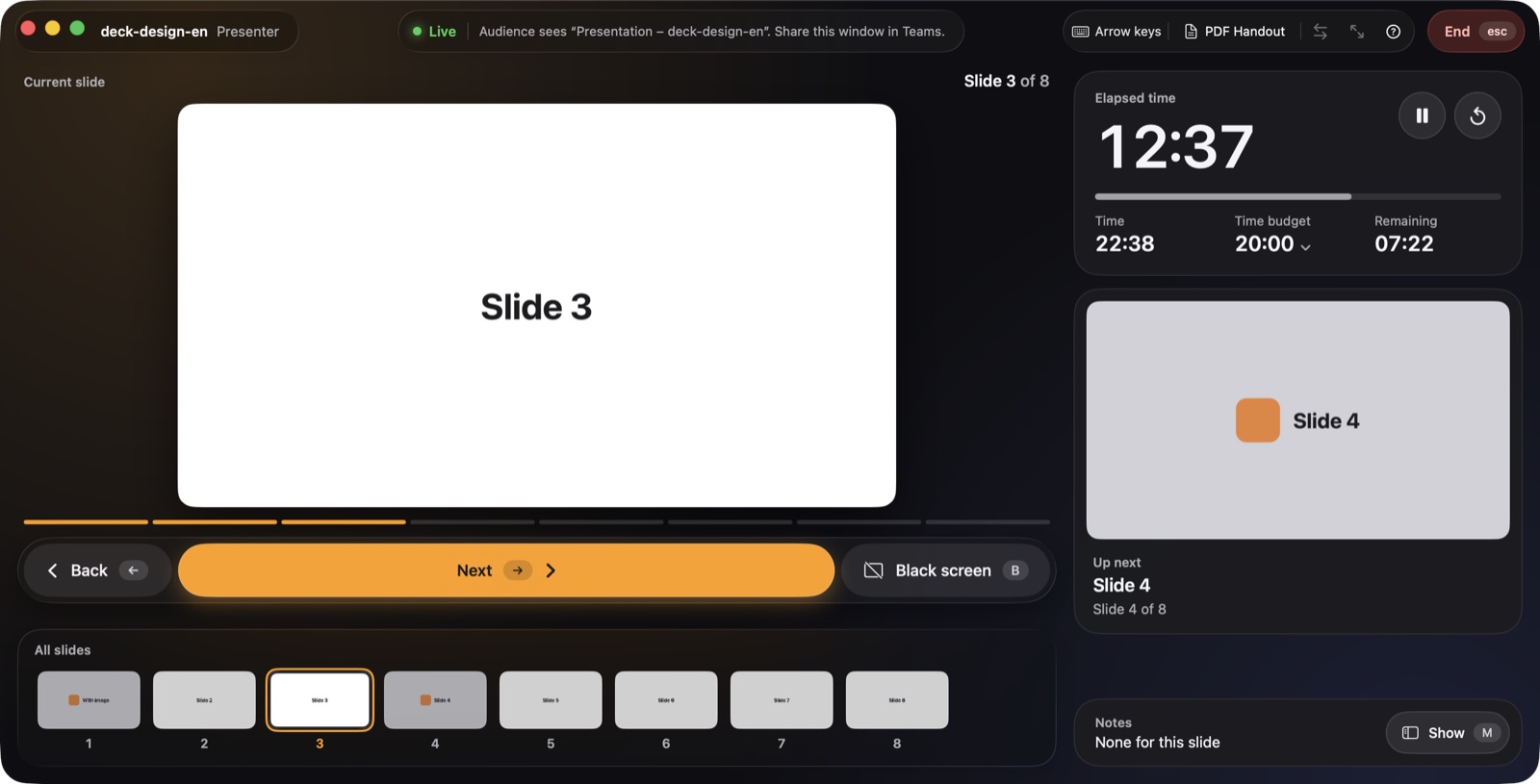
presenthtml separates audience and presenter into two windows. Without a second display, the app opens the presentation in its own window called “Presentation – file name”. That’s the window you share. The presenter view with notes, next slide and time stays in a second window that Teams doesn’t transmit.
The presentation window may sit behind the presenter view. It keeps running, so the shared picture doesn’t freeze.
Step by step in Teams
- Open the presentation before the meeting. Open the HTML file in presenthtml before you share in Teams, so the window shows up in the list right away.
- Choose “Share” in Teams. Pick Window and select “Presentation – file name”. Not the whole screen.
- Bring the presenter view to the front. Click the presenter window. From now on you see notes, next slide and time; your audience sees only the slides.
- Start and advance. The Space bar starts your talk, → or a clicker advances. Keys work as long as presenthtml is in front.
The same works in Zoom, Webex and Google Meet: share the window “Presentation – file name”.
With a second display in the meeting room
If a projector or display is connected, presenthtml shows the presentation there in full screen. To share in Teams anyway, press F to switch to the window. You can also make this the default in the start window.
Common pitfalls
- Teams shows no picture. On the Mac, Teams needs the Screen Recording permission (System Settings → Privacy & Security).
- The audience sees your notes. Then the whole screen or the wrong window is shared. Share only “Presentation – file name”.
- Keys don’t respond. Click once into the presenter view so presenthtml receives the keyboard.

More guides
Guide: create and present
The complete guide: create HTML presentations with Claude, add speaker notes, test them and present with a presenter view on a projector or in Teams.
Read the guide →Present Claude slides
Present an HTML deck made with Claude on a projector or in Teams – with a presenter view, next slide, speaker notes and a time budget on your Mac.
Read the guide →reveal.js with a presenter view
Present reveal.js decks on the Mac with a presenter view showing the next slide, speaker notes and a time budget – no pop-up window, no notes server.
Read the guide →